Tuesday, May 5, 2015

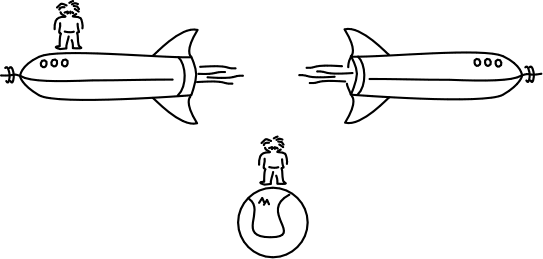
The "two moving space ships" Time Dilation problem


Problem: When two moving space ships pass each other in space, why do they BOTH see the other's clocks as moving slower?

Here's how Wikipedia's article on Time Dilation describes the "problem":
When two observers are in relative uniform motion and uninfluenced by any gravitational mass, the point of view of each will be that the other's (moving) clock is ticking at a slower rate than the local clock. The faster the relative velocity, the greater the magnitude of time dilation. This case is sometimes called special relativistic time dilation.
For instance, two rocket ships (A and B) speeding past one another in space would experience time dilation. If they somehow had a clear view into each other's ships, each crew would see the others' clocks and movement as going more slowly. That is, inside the frame of reference of Ship A, everything is moving normally, but everything over on Ship B appears to be moving more slowly (and vice versa).
It is understood that people aboard space ships going at high velocities will view everything moving at "normal" speeds aboard their own ship.  I.e, their clocks will appear to be ticking and measuring time "normally."

If there are two space ships, the people on both ships will view their own clocks as operating "normally." 

In a situation where there is only one space ship, a person aboard that space ship would see a clock next to a stationary person on earth as moving faster. (However, this may be viewing Time Dilation without the "special relativistic" factor.)

In a situation where two space ships are moving in parallel at the same speed, they would all view each other's clocks as all working "normally."

So, the question is: When the two space ships are not in synchronous movement, why do they see the other space ship's clocks as moving slower regardless of what speeds or directions they are moving?

Another question:  If people aboard a moving space ship see clocks that are stationary as moving faster, why doesn't the crew of a fast moving ship see the clocks on a slow moving ship as moving faster?

It seems the answer must be in what is perceived versus what is actually happening.  The person doing the viewing perceives time as "normal" and they perceive time on the other ship as moving slower.  This subject is typically illustrated with clocks that bounce light beams up and down off mirrors. 


A person beside such a clock will perceive light going straight up and down, which is "normal."   They will perceive the light beams on the clocks on the other ship as moving at angles, tracing out longer V or W patterns as the ship moves relative to the observer.  Since the speed of light is fixed, longer paths for the light beam means slower time.


However, there seems to be no way to perceive time as moving faster when bouncing light straight up and down perceived as "normal" and light bouncing at angles is perceived as "slower."

Is that why light-based clocks are used?  It it a purely hypothetical Relativistic situation that is dependent entirely on using light based clocks?


Or is there some way to relate this to mechanical clocks?  Why would mechanical clocks on the other ship also be perceived as running slower?  Why wouldn't mechanical clocks on the slower ship be perceived as running faster?

The best description I've seen of light-based clocks can be viewed by clicking HERE.  It also describes why mechanical clocks would work just like light-based clocks when they are side by side.  Here's the illustration they use at the section about this:
But I still do not understand why the mechanical clock on the slower moving space ship would not be perceived as running faster than the clock on the faster moving space ship.

And, it seems to me that if I'm aboard a fast moving space ship and we pass a slower moving space ship on the left side of my ship, the slow ship will pass moving right to left, and the light beam clock would create a V moving from left to right.  If I am aboard a slow moving space ship and a faster moving space ship passes me on the left, the ship will move from left to right, and the movement of the bouncing light beam would create a V moving right to left.   

There should be some way to translate the left to right creation of the V on the slower ship's clock as an indicator that the clock on that slow ship I passed is running fast.   

What is it I am not understanding?

I suspect that, while I understand Time Dilation very well, I am not understanding Special Relativity and Special Relativistic Time Dilation.  I suspect that Special Relativity is best described using mathematics.  I suspect Special Relativity involves things in the mathematical realm that are counter intuitive to human visual experiences and therefore cannot be easily described in human experience terms.  I suspect that is why, when teachers try to describe aspects of Special Relativity in visual terms, their descriptions make little sense to people who do not know and understand the mathematics.  They are "counter intuitive."  That is probably why teachers are always apologizing and telling their students that it would all make more sense if they studied the mathematics.

Ed

Wednesday, April 15, 2015

Subject: Time Dilation Explained


Albert Einstein supposedly once said, “You do not really understand something unless you can explain it to your grandmother.”  I think I understand Time Dilation, and I think it can be explained relatively simply.  And I don't need to use complex mathematics (which mainly help prove and compute Time Dilation) or incongruous, fantastical examples, like somehow viewing a clock on a space ship that is a kazillion miles away moving at a kazillion miles per hour while at the same time they are looking at the clock on their kitchen wall on Earth.

I'd like to explain Time Dilation in a somewhat different way.  

First, it is very important to understand that Time Dilation has only to do with the movement of an object or person relative to the speed of light or to a stationary object.  It has absolutely nothing to do with the movement of a moving object or person relative to another moving object or person.

Second, instead of two people using different clocks that the other person cannot possibly see, let's use a single natural clock -- a pulsar that both can see.  We just need to pick a pulsar that pulses at an easy-to-use rate -- say one pulse every 10 seconds.  Using such a "clock," 

     1 pulse every 10 seconds = 6 pulses per minute. 
     6 pulses per minute = 360 pulses per hour, or
     8,640 pulses per day, or 
     3,153,600 pulses per year, or 
     31,536,000 pulses in TEN years, or 
     31,553,280 pulses when you include 2 leap year days.

Next, let's assume that, on January 1, 2500, a pair of astronomers who also happen to be 25-year-old twins, decide to perform a Time Dilation experiment.  The two astronomer's names are Homebody Jones and Traveler Jones.

The experiment will involve Traveler Jones and his wife taking a space ship on a journey to Alpa Centauri.  Alpha Centauri is 4.3 light years away from Earth, and it is one of the nearest stars to our Solar System.  Homebody Jones will wait back home on Earth.

Since there is no way for either party to see what is happening with the other party via some magical TV signal, Time Dilation will be measured by counting pulses from that distant pulsar.  On Earth, Homebody Jones can observe the pulsar's pulses occurring at the rate of 1 pulse every 10 seconds as described above. 

The planned route to and back from Alpha Centauri is within the plane of the rotating beam from the pulsar, and the route will be at a right angle to the oncoming beam from the pulsar, so there will be no effect on pulse counts caused by the speed of light. 


The experiment is expected to take 10 years, Earth time.  From the point of view of the two people traveling on the space ship, however, things are soon very different.  They have determined that, aboard the space ship, Traveler Jones will have to travel very close to the speed of light before the effects of Time Dilation will enable him to observe the same pulsar pulsing at an average of 1 pulse every 1 second.

As the space ship begins to accelerate, the number of pulses per minute from the pulsar appears increases due to Time Dilation.  Traveler and his wife record the pulses as arriving more and more quickly until the ship reaches its cruising speed where the pulses are recorded as arriving at a rate of slightly more than 1 pulse per second (to compensate for the time spent accelerating). 

Life and time aboard the space ship, however, will seem to be ticking along normally.  The two passengers feel no effects from the slowing down of time aboard the ship.  They still go to bed at 11 p.m. as measured by the clock aboard the space ship, they still get up at 7 a.m., Traveler Jones still has to shave every morning, they eat breakfast at 7:45 a.m., etc.  To them, it doesn't seem like time is slowing down, it appears that everything outside of their space ship is going faster.  They can see that the pulses from the pulsar are coming at a faster rate.  They can also see that planets orbiting distant stars are orbiting at a faster rate.

One month into their voyage, as measured by clocks aboard the space ship, Mrs. Traveler Jones unexpectedly (or maybe according to plan) becomes pregnant.

When they reach a point just beyond Alpha Centauri where they calculated they would need to turn around, they decelerate down to a stop.  When they've done that, they also see that the pulses from the pulsar have slowed down and are once again arriving at 1 every 10 seconds.

Then they accelerate again to return to earth.  Very soon, the pulses from the pulsar are again reaching the space ship at the rate of just slightly more than one per second (in order to compensate for the acceleration and deceleration).  

On the voyage home, Mrs. Traveler Jones has a baby boy right on schedule, at the end of a nine month gestation period as measured by her "body clock" and by all the various kinds of clocks aboard the space ship.

Then, on January 1, 2501, according to the clocks aboard the space ship, they arrive back on earth.  Traveler is now 26 years old and his son is 2 months old. 

They meet Homebody Jones and find that on Earth it is January 1, 2510.  From Traveler's point of view, he and his wife traveled forward in time nine years.  Only one year passed for them while, from Homebody's point of view, Traveler and wife were gone for ten years.  During that time, Homebody aged 10 years.  He is now 35 years old -- nine years older than his twin brother.

They compare the results of counting pulses from the pulsar, and both counts are exactly the same.  F
rom Traveler Jones's point of view:
 
1 pulse (on average) every second = 60 pulses per minute.
60 pulses per minute = 3,600 pulses per hour, or
86,400 pulses per day for 365 days, plus
17,280 pulses to compensate for 2 leap year days equals

31,553,280 pulses counted during the ONE year trip.

There were 31,553,280 pulses measured by both devices during the experiment.  From his perspective, it took Traveler just 1 year to record that number of pulses.  From Homebody's point of view, it took 10 years to record the same number of pulses.  Neither twin counted more pulses than the other.  And that means,

     No one was ever ahead of or behind the other in time.

The experiment confirmed "time dilation."  Time slows down for a person who is traveling very fast.  But the person doing the traveling sees and feels no effects on himself or his ship.  To people on Earth, it would appear that time had slowed down for the traveler.  It took 90 months for them to have a baby.  For Traveler Jones, it would appear that time had sped up on Earth and in the rest of the universe, as evidenced by the increase in the rate the pulses from the pulsar were received.


For a longer explanation that includes WHY time slowed down, go to my Time Dilation web page by clicking on the link HERE.

Ed

Monday, March 9, 2015

Subject: "Thinking, fast and slow"

I started out thinking (fast) that Daniel Kahneman's book "Thinking, Fast and Slow" was a book about the thought processes of two different types of people: one type which thinks "fast" and the other type which thinks "slow."  It turns out that everyone thinks both "fast" and "slow." 

"Fast thinking" is basically an automatic reaction.  I.e., you jump when hearing a loud noise.  "Slow thinking" is done when you need to figure things out or need to be very careful.  I.e., someone asks you what the last four digits of your social security number are.  Everybody does both types of thinking, but we don't always do them under the same circumstances.  An English teacher might automatically correct someone's English without thinking.  It's a habit resulting from years of teaching.  It's also an example of "fast thinking."  A person who is not an English teacher might not even notice the grammatical error unless they were trying to figure out something about the person talking.  Then they might utilize "slow thinking" to conclude that the grammatical error is an indicator of minimum schooling, or basic carelessness, or a fascinating mistake by someone whose native language is not English.

One very interesting aspect of fast and slow thinking is that fast (automatic) thinking might be totally wrong, and you might KNOW it's wrong, but you have no control over it and cannot prevent thinking that way.  You can only accept and acknowledge that you are thinking incorrectly and shift to "slow thinking" to avoid doing the wrong thing as a result of your uncontrollable "fast thinking."
  The illustration of this used in the book is the famous Muller-Lyer illusion:

muller lyer illusion
The "fast thinking" part of your brain will continue to tell you that the top horizontal line is longer than the bottom horizontal line even though you've measured the two lines every possible way, and the "slow thinking" part of your brain knows beyond any doubt that the two horizontal lines are the same length.

Biases are generally the result of "fast thinking."  No matter what the facts and evidence say, we may stick with our biases and ignore the facts and evidence.

Of course, I had to start wondering if this could somehow help explain why Truthers and conspiracy theorists of all types routinely accept their biased beliefs as being true and correct, and no amount of facts and evidence can change their minds.  Is some automatic part of their brain seeing things that a little bit of "slow thinking" would very quickly show to be nothing but misunderstandings?  Or are they so accustomed to making decisions using biased "fast thinking" that they are no longer capable of realizing that they could be wrong?

Truthers, of course, feel the same way about me.  They argue that I am so biased toward believing everything "the government" says, that I mindlessly accept every claim and statement - without any thought of any kind.  And then, of course, a moment later, they'll criticize me for disagreeing with the FBI's testimonial evidence that Dr. Ivins somehow disguised his handwriting when he wrote the anthrax documents.  They argue I accept everything the government says while at the same time arguing that I do not accept everything "the government" says -- which they probably see as evidence that even I do not trust "the government," proving that the "the government" should never be trusted. 

No matter what the facts and evidence say, they'll spin everything to fit their "fast thinking" biases.  They are not incapable of "slow thinking."  They use it every day to figure out how to twist things to make them fit their "fast thinking" biases.


To figure out what is true and correct, you have to evaluate and compare the EVIDENCE for ALL SIDES.  I constantly try to get others to do that.  But Truthers and conspiracy theorists absolutely REFUSE. Instead, they argue that they do not BELIEVE the government's evidence and that the government's evidence doesn't meet their personal standards for evidence (or it isn't really evidence and only people who have been brainwashed think it is).  There seems to be no way to get past such "fast thinking" biases.


Ed

Thursday, February 19, 2015

The Touch Pad Mystery - Part 2

Yesterday afternoon, I discovered an option in the Control Panel Mouse settings that I hadn't seen before.  I wondered if it might solve my touch pad problems. 

Below is a section of my Control Panel screen which I can access by first accessing the "charms," then clicking on the SETTINGS "charm," then clicking on "Control Panel."  The settings of immediate interest in the Control Panel are for the Mouse and the touch pad (ClickPad), circled in red below. 


When I clock on the Mouse option, I get the window shown below (clicking on the image should give you a larger version):


It was a puzzle to me why a settings window showing "mouse properties" would show buttons that relate to the Synoptics ClickPad.  However, I wasn't concerned with the mouse.  I was concerned with the ClickPad.  When I clicked on the "ClickPad Settings" tab at the top of the window, I got the window shown below:


The option of interest is in the above graphic where I can put a check mark before "Disable internal pointing device when external pointing device is attached."

Clearly, that option solves one problem I'm having with my touch pad (ClickPad).  It allows me to turn off the touch pad when I'm using the mouse. That's a minor problem because I might accidentally touch the touch pad while typing.  When I do that, it can change the place where the cursor is located.  Instead of continuing to type at the bottom of the page, I might accidentally suddenly start typing in the middle of a word in the middle of the page.

But my main problem is still that I am unable to use the touch pad when I do not also use the mouse.  And that makes the touch pad virtually useless, since the only time I would generally want to use the touch pad is when I'm traveling or in some situation where using a mouse is inconvenient.

It appears that if I do not turn on the mouse before turning on my computer, the touch pad will not work.  Go to part one of this topic (click HERE) for a history of the problem.

When I clicked on the box before the "Disable internal pointing device" option, it immediately disabled the touch pad.  So, I know I can solve the minor problem I have with my touch pad.

But, when I detached the mouse, the touch pad did NOT turn on.  Nor did the touch pad turn on when I closed my computer and restarted it again without the mouse attached.  The only way to effectively use the computer was to connect the mouse again.  Then I can use both the mouse and the touch pad.

The purpose of this blog entry is to describe the current situation.

I've demonstrated about ten times in a row that the touch pad will turn on if I turn on the mouse before turning on the computer.  For the record, when I click on Device Manager in the Control Panel, then open the folder of "Mice and other pointing devices"and click "Synoptics PS/2 Port Touchpad" it always says the touch pad is "working properly":

     
Next, I'm going to see if the touch pad will turn on if I turn on the computer first and then test to see if the touch pad works while the mouse is still turned off.  In the past, it did NOT work.  But I didn't make sure to go through the same steps every time I tried it.  I'll also try it with the mouse completely disconnected.

Instead of updating this text to reflect test results, I'll add the test results as comments below.

After several sessions, it was clear that the touch pad will NOT work if I do not turn on the mouse first.  So, it's time to try some other switch change.  My touch pad settings have been set as shown in the image below:


They were set that way because it appeared that the "two finger scroll" option was causing the problem.  (On the Internet, there seem to be hundreds of people discussing problems with the "two finger scroll" feature.)  So, that option and related options were turned off.  I just turned them back on again.  The settings as of Friday evening will be as shown in the image below:


I'll continue leaving the mouse off until I've turned on the computer and tested to see if the touch pad works.  The only change will be the change in the switches as shown above.

Everything seems to be working okay now (Sunday, Feb. 22, 2015).  The problem is: I'm not sure exactly what caused things to work.  I learned that disconnecting devices while the laptop computer is "asleep" (i.e., the lid is closed) will have different results than disconnecting the same device while the laptop lid is open.

Examples: Switching monitors (i.e., switching from the 23-inch monitor in my office to my TV in my living room while my laptop is "asleep" will cause the colors on the TV to be totally wrong.  I have to disconnect the TV and reconnect while the laptop is open to get the right colors.

Also, simply pulling out the mouse transmitter from the USB port will not always automatically turn on the touch pad.  I may have to close the lid and reopen the lid to get the touch pad to work.

It seems that there are just too many options and too many ways of doing things to be certain that everything will work no matter when you turn something on or off.

But, as of this moment, my touch pad works and so does the "two finger scroll" option.  The switch is set so it will ONLY work when the mouse is turned off.  And that is fine with me.

End of story ------- for now.

CORRECTION: "End of story" for a few hours.  When I tried use the touch pad in the afternoon, there didn't appear to be any way to make it work.  Pulling out the transmitter tab for the mouse before closing the lid didn't do it.  Pulling out the transmitter tab for the mouse after closing the lid didn't do it.  Closing and opening the lid on the computer while the tab was removed didn't do it.

I went to the control panel switches for the touch pad, and none of them work -- probably because the touch pad is supposed to be off while the mouse is working.

So, I went to the control panel switches for the mouse and turned off the switch that says the touch pad should be off when the mouse is off.  It changed nothing.

I turned that switch on again, pulled out the mouse transmitter tab, and nothing changed.  The touch pad still doesn't work.

I tried turning off the computer using the power switch after disconnecting the mouse.  It affected nothing.  I couldn't get the touch pad to work.  

At the moment (4 p.m. on Sunday, Feb. 22), I cannot think of any way to get the touch pad to work again.

I'm back where I started.

Or so I thought.  But, on Monday morning, I pulled the mouse transmitter tab out of its USB socket and the touch pad was suddenly working again.

Now the question is: What did I do differently on Monday morning than on Sunday?  Why is the touch pad working (including the "two finger scroll" functions) today, but not yesterday afternoon?

The only things I can think of are that there is either some set of events that have to happen in the right sequence, or that time is a factor, i.e., leaving the computer off overnight is somehow different from just shutting off the computer for a few minutes.    

Ed

Thursday, February 5, 2015

The Touch Pad Mystery

I bought my new HP Pavilion 17 notebook (laptop) on October 1, 2014, and I've been having problems with the touch pad ever since.  In a previous thread (HERE) I wrote about the problems involved in converting to a new computer.  All problems have been resolved, except for one: the touch pad on my lap top doesn't work properly.  Initially, the problem was the touch pad would simply stop working.

I've taken the computer back to the store several times, and each time the touch pad problem appeared to be fixed, but then the touch pad stopped working again.  The last time was on November 24, 2014.  The touch pad was working fine when I tested it in the store.  However, the fix only lasted until I got home and turned on my computer again.  When I did so, the touch pad wasn't working.

At one time, the problem appeared to be that the "two finger scroll" functions were at fault, since it seemed that things would work fine when those functions were turned off.  That might still be true, but the touch pad stopped working even when I had the "two finger scroll functions" turned off. 

I bought a mouse on November 2, 2014, so as of that time I was no longer dependent on the touch pad.  And, it was clear that I much preferred using a mouse to using the touch pad, so I just used the mouse from that time on.  The only "solution" at the time seemed to be to reload the Synaptic touch pad driver every time the problem occurred.  But, that didn't seem like a viable solution, since it wouldn't help me when I was in an hypothetical situation where I couldn't use the mouse.  I could probably learn how to to reload the touch pad driver to get it working again, but why do so when I still won't be able to load the driver unless I have the mouse connected?

Then a discovery.

On the morning of January 29, 2015, I brushed away a speck of dust from the touch pad and the cursor moved.  Checking further, I found that the touch pad was working "normally," but without the two finger scroll function.  The touch pad had apparently fixed itself!

I was so excited that I posted a message to Microsoft's user forum with the subject "My touchpad suddenly started working."  (I thought Microsoft may have applied a fix.  When I noticed the touch pad was working, I'd also noticed that someone was updating something in the "background," because there was a significant delay between me typing and the letters appearing on the screen.)

But, it only lasted until I turned the laptop off to go to lunch. When I returned from lunch and opened the lid on my computer, the touch pad was "dead" - totally nonfunctional - as usual.

Meanwhile, someone on the Microsoft forum has asked me if, in the Device Manager area, under "Mice and other pointing devices," it says the touch pad is not functioning.  I checked, and it said the touch pad was "working properly" even though it wasn't functioning at all.  That was the end of the discussion.

Then, on the morning of February 1, it happened again.  I brushed away a speck of dust on the touch pad, and the cursor moved.  The touch pad was functioning again (without the two finger scroll function).  It lasted until I closed the lid on the computer to go to lunch.

When it happened again on the morning of February 4, I decided to do some research and to start being more scientific about the figuring out the cause of the problem.  I did a Google search for "touchpad on-switch" and found a discussion HERE about such a thing on a HP notebook. I found that some HP laptops have an on-off switch for the touch pad.  You either tap the upper left corner twice to turn the touch pad on and off, or you press the upper left corner and hold it for a few seconds to perform the same functions.  But, that doesn't work on my laptop.

Something is turning the touch pad on, however.  I was becoming certain that closing the lid on the laptop was what turned the touch pad off, but when I did a test on Feb. 4 while the touch pad was working, only closing the lid for about 30 seconds, the touch pad was still working when I opened the lid and signed on again.  However, when I closed the lid to go to lunch and run some errands for a couple hours, the touch pad was no longer functioning when I returned.

I also did another test while the touch pad was working.  I swiped my finger in from the left side to see if it would turn the touch pad off.  It didn't, but while my finger was still on the touch pad, the cursor wasn't moving.  I had to lift my finger and put it down again to get the cursor to start moving again.  So, it had temporarily turned off the touch pad - sort of.  (The reverse doesn't work.  I.e., when the touch pad isn't working, swiping my finger in from the left side does nothing.) 

This morning I went through the pdf file of instructions for my laptop to see if it says anything about any switch for turning the touch pad on and off.  It doesn't.

So, now I'm waiting for the touch pad to start working again.  And I'm keeping a record of what tests I did when the touch pad starts working again all by itself.  It hasn't escaped my notice that the touch pad seems to start working around every third day.  We'll see if it starts working on the 7th.  If it does, I think I have an idea where the problem comes from.

Hmm.  When I returned home on the afternoon of the 6th and turned on my laptop, the touch pad was working again.  So, it wasn't quite three days.  But there is still some kind a pattern to it.  The touch pad kept working after I closed the laptop lid a couple times for 10 minutes or so.  But, on the morning of the 7th it was no longer working.  And then on the morning of the 8th it was working again.  And when I turned on the laptop in the afternoon it was still working.  And it was still working on the morning of the 9th.  In the afternoon, it wasn't working. And, for the second time, it worked 2 days in a row when it worked all day on the 11th and was still working on the morning of the 12th.  Here's a summary of the times the touch pad worked:

Jan. 29: worked in the a.m.
Feb. 1: worked in the a.m.
Feb. 4: worked in the a.m.
Feb. 6: worked in the p.m.
Feb. 8: worked in the a.m. & p.m.
Feb. 9: worked in the a.m.
Feb. 11: worked in the a.m. & p.m.
Feb. 12: worked in the a.m. & p.m.
Feb. 13: worked in the p.m.
Feb. 14: worked in the a.m. & p.m.
Feb. 15: worked in the p.m. - sort of
Feb. 16: worked in the a.m. & p.m - sort of (see comments).
Feb. 17: worked in the a.m. & p.m.
Feb. 18: worked in the a.m. & p.m.
Feb. 19: worked in the a.m.

On Saturday, Feb. 15, I noticed that the touch pad was working but then stopped working.  It stopped when I moved the computer into another room, where I turned on the computer first, and then the mouse.  Experiments on Sunday the 15th and Monday the 16th seem to confirm that the touch pad works ONLY if I turn on the mouse before turning on the computer.

Of course, that means I need the mouse in order to make the touch pad work.  That makes the touch pad worthless, since the only time I would need it is when I'm in a situation where I can't use the mouse.

What I'm going to do for the next five days is turn my computer on and off the same way every time as follows:
 
1. Turn on the mouse.
2. Turn on the power to the large monitor.
3. Open the computer.
4. Use the mouse.
5. Check to see if the touch pad works.

When I shut down for lunch and in the evening, I'll do the following:

1. Close the lid on the computer.
2. Turn off the mouse.
3. Turn off the power to the large monitor.

When I've done that for five days, if the results are consistent and the touch pad always works, I'll try switching some element to see what the effect is.  I'll write the results in comments below, instead of here.

I need to confirm everything.  But, I think I'm getting close to having enough information to use when I discuss the problem with HP or with Microsoft or with the people at the computer store.

Ed

Tuesday, January 6, 2015

Facts and Evidence


I created the top cartoon in May 2013 to illustrate how an Anthrax Truther looks at facts and evidence.  Now, I realize that if the Truther were a lawyer presenting his case in court, he would not say or imply that facts are evidence.  He would argue that the highlighted A's and T's are evidence which he believes should establish a "fact" for the jury.  Whether the jury believes his "fact" is another matter.

Personally, however, I think the top cartoon is funnier.  And there would be nothing wrong with that wording if the presentation were being made outside of a courtroom.

The copy of "The People's Law Dictionary" in my personal library contains these definitions:
FACT: n.  an actual thing or happening, which must be proved at trial by presentation of evidence and which is evaluated by the finder or fact (a jury in a jury trial, or by the judge if he/she sits without a jury).
EVIDENCE: n.   every type of proof legally presented at trial (allowed by the judge) which is intended to convince the judge and/or jury of alleged facts material to the case.  It can include oral testimony of witnesses, including experts on technical matters, documents, public records, objects, photographs, and depositions (testimony under oath taken before the trial).  It also includes so-called "circumstantial evidence" which is intended to create belief by showing surrounding circumstances which logically lead to a conclusion of fact.
Ed

Thursday, November 6, 2014

Learning how to use my new laptop computer


The Scientific Method

This morning I found a link HERE which explains how to fix the "two finger scroll not working" problem.  There's a different solution HERE.  The technician I talked with on Tuesday spent a lot of time looking at the solution described on the web page HERE.  Other possible solutions may be found HERE.

My experience has been as follows:

I bought my laptop a month ago, on October 1, 2014.  The instructions on how to use the touchpad included two finger scrolling, right-edge swipe to show the "charms," left-edge swipe to switch between apps, and other features.

I had a LOT of difficulty adjusting to the touchpad AND the fact that if the cursor landed on some link and remained there for more than a fraction of a second, the link would activate.  Or if the cursor was on a link when I completed a scroll motion, when I touched the touchpad again to complete the scroll it might be the same as activating the link that was currently under the cursor.  Within a few days I somehow clicked on a link or did something that filled my computer with malware.  So, I had to take it back to the store to have it cleaned out.  They restored all the software to its original state.  The two finger scroll was still working fine.  (I was also having MAJOR problems figuring out the best way to copy and paste.)

So, that was how I used my lap top from October 1 to November 2 when the touchpad suddenly stopped working altogether.  I couldn't even move the arrow around, because there was no arrow.

I took the laptop back to the store, and they seemingly fixed the problem.  However, when I got it home I found that, while I could move the arrow around, the two-finger scroll didn't work, nor did the left-swipe, etc.

The next day, November 3, I contacted the store's on-line site and they restored the two-finger scroll function in about 20 minutes.

But, on November 4, while visiting http://www.thesuperficial.com/, I started getting "unresponsive plugin" and "unresponsive script" messages over and over, like it was in a loop.  And, I think the cursor arrow changed to a small hand for awhile.  When I managed to get out of that web site, the touchpad on my laptop was once again totally dead.  It didn't work at all.  (I think it's possible that the first time the touchpad went totally dead I'd been either on that same site or on www.tmz.com.) 

So, I again contacted the store's on-line site.  This time, the technician spent two hours prowling around trying to find a solution.  He finally restored some functionality to the touchpad, but not two finger scrolling.  When it was clear he was just doing the same things over and over and over without any change in the results, I told him I was going to take the laptop back to the store technicians so that they could see what I was doing on the touchpad.  (The on-line technician had type into a communication box when he wanted to ask me to use the touchpad to see if some fix had worked or not.)

So, on November 5, I took the laptop back to the store.  And that's where the situation is at the moment.

But, I'm concerned that there may be no current workable solution to the problem. And, I'm thinking that the store technicians just can't say that it is a " currently unsolvable problem."

Plus, it had taken me a month to discover that I probably shouldn't be using the touchpad anyway, since the mouse is VASTLY easier to use.  I just need the touchpad for the rare occasions when I might take my laptop out of the office to some place where it isn't convenient to use a mouse. (That's why I bought a laptop and not another desktop computer.)

Some history:

I started working with computers in 1964 as a programmer.  Later I became a systems analyst and systems manager for major corporations.  I think I got my first home computer sometime in the 1980s.  I use my current home computer all the time, but I don't keep up to date on software changes.

On my old computer, I'm currently running Windows XP.  I use my old computer to maintain my web site, which I update on average once per day.  I use Netscape 7.2 (which I think is from 1998) as my email software AND as my web site composer.  I use Lotus-123 (1998 version) for my spreadsheets.  I use Word 2003 to write my books.

I'm having problems with emails.  It sometimes takes a half-dozen tries to send an email, and it may take five minutes or more to receive/download an email.  

So, I decided I needed to upgrade.  But, I can't switch to Windows 8.1 on my old computer without reloading all the application software, and I'm not sure how much of my old software will work on 8.1.

So, I bought a new laptop.  The plan was to switch everything over to the laptop, and then convert to Windows 8 or 8.1 on my old computer.  And one of the two computers could be used as a backup.

It took me nearly a month to realize that I shouldn't be using Firefox as my web browser on my laptop.  (I had been using Firefox for many years on my old computer, but the "current" version on my old computer with Windows XP is NOT the same as the current version of Firefox on Windows 8.1.)

I didn't think it would be a good idea to try to continue using Netscape 7.2 as my composer.  So, I tried finding a composer in Windows OFFICE 365.  But, they don't have one for Windows 8.1.  I did research and found out about Firebug.  I downloaded it, but I couldn't do anything with it.  It's a totally different kind of composer.  Talking with people on the Firebug forum, I was told that I should be using SeaMonkey.  I'd never heard of SeaMonkey, but when I downloaded it, it looked to be PERFECT for my needs.  Of course, someone else quickly said that a different program, Bluegriffon was better. Maybe so, but first I'll have to see if SeaMonkey does all I need it to do.   

I also use my computer to argue with conspiracy theorists on my blog HERE.

I haven't even tried to switch my two email accounts to the laptop.  My old computer still uses "pop servers."  (I have an archive of 50,000 emails that would probably need to be switched over, too.)

But, mostly I want to use my computer to write books.  I just need to get this computer changeover completed first.

If the two-finger scroll and other features on the touchpad can't be made to work, I need to find out how to get to the "charms" functions some other way, along with finding a different way to do all the other things that don't work.  There would only be a "serious" problem if the touchpad could not be used to visit web sites because I might visit one that triggers a total shutdown of my touchpad.   

Ed